
Ramping Up Your Laptops Ram
Unlock Peak Performance: A Comprehensive Guide to Ramping Up Your Laptop’s RAM
Increasing your laptop’s Random Access Memory (RAM) is a critical upgrade for enhancing system responsiveness, application performance, and overall computing experience. RAM acts as a short-term memory for your computer, holding data that the CPU actively uses. Insufficient RAM leads to bottlenecks, causing your system to rely on slower storage devices like SSDs or HDDs for temporary data storage, a process known as "swapping" or "paging." This results in noticeable slowdowns, laggy applications, and a frustrating user experience, especially when multitasking or running demanding software. Ramping up your RAM directly addresses these limitations by providing more immediate access to data, allowing your CPU to work more efficiently and your applications to run smoother. This guide delves into the intricacies of RAM upgrades, from identifying compatibility to the physical installation, empowering users to make informed decisions and maximize their laptop’s potential.
The first step in any RAM upgrade is accurately identifying the type and capacity of RAM your laptop currently supports. This involves understanding several key specifications: DDR generation (e.g., DDR3, DDR4, DDR5), module type (e.g., SODIMM for laptops), speed (measured in MHz), and maximum capacity per slot and total system capacity. Navigating your laptop’s documentation or manufacturer’s support website is the most reliable method. Look for sections on "Specifications," "Technical Details," or "Upgrades." Many manufacturers provide detailed manuals that outline the exact RAM configurations supported. Alternatively, system information tools within your operating system can provide some clues, though they might not always be completely exhaustive. For Windows, the "System Information" utility (searchable in the Start menu) can display installed RAM and its type. For macOS, "About This Mac" followed by "System Report" will offer similar information. However, for definitive compatibility, especially regarding maximum supported capacity and specific DDR generation, the manufacturer’s website is paramount. Overlooking this crucial step can lead to purchasing incompatible RAM, rendering the upgrade unsuccessful and potentially causing system instability.
Understanding RAM specifications goes beyond just DDR generation. The "speed" of your RAM, denoted in MHz (megahertz), signifies how many data transfer cycles per second the module can perform. While faster RAM can offer marginal performance gains, it’s crucial that it’s compatible with your laptop’s motherboard and CPU. The motherboard and CPU have a maximum supported RAM speed. Installing RAM faster than the supported speed will result in the RAM operating at the motherboard’s or CPU’s maximum speed, negating the benefit of the faster modules. Furthermore, mixing RAM modules with different speeds can lead to the entire system operating at the speed of the slowest module. For optimal performance and stability, it’s generally recommended to match the speed of existing RAM if you are adding to it, or to purchase a matched kit of identical modules if replacing all existing RAM. The "CAS Latency" (CL) is another specification that, along with speed, influences RAM performance. Lower CAS Latency indicates faster response times. While speed is often more prominent, a good balance between speed and latency contributes to overall efficiency.
The physical form factor of laptop RAM is almost universally SODIMM (Small Outline Dual In-line Memory Module). These are significantly smaller than the DIMMs found in desktop computers, designed to fit within the confined space of a laptop chassis. When purchasing new RAM, ensure you are selecting SODIMM modules. Each laptop has a limited number of RAM slots, typically one or two, though some high-performance or workstation laptops might feature more. The maximum total RAM capacity your laptop can handle is a critical limitation. Exceeding this limit, even if you purchase compatible modules, will result in the system not recognizing the excess RAM. This information is usually found in your laptop’s specifications. For instance, a laptop might support a maximum of 16GB of RAM, with each slot supporting up to 8GB. If it has two slots, you could install two 8GB modules. If you currently have a single 8GB module and want to upgrade to 16GB, and your laptop supports 16GB total, you would need to replace the existing 8GB module with a 16GB module, or, if it has two slots and supports 16GB total, you could add another 8GB module.
When considering an upgrade, there are two primary approaches: adding more RAM or replacing existing RAM. Adding more RAM is ideal when your laptop has an available RAM slot and its current RAM capacity is below the system’s maximum supported limit. For example, if your laptop has two slots, one occupied by a 4GB module and the other empty, and it supports up to 16GB, you could add an 8GB or 16GB module to the empty slot to reach 12GB or 20GB respectively, provided the total capacity isn’t exceeded. However, it’s generally recommended to use identical modules (same capacity, speed, and latency) for optimal dual-channel performance. If your laptop has only one RAM slot, or both slots are occupied but the total capacity is below the maximum, you will need to replace the existing module(s) with higher-capacity ones. This is also the approach if you are upgrading to a significantly faster generation of RAM, though it’s important to re-emphasize that the laptop’s motherboard must support that generation.
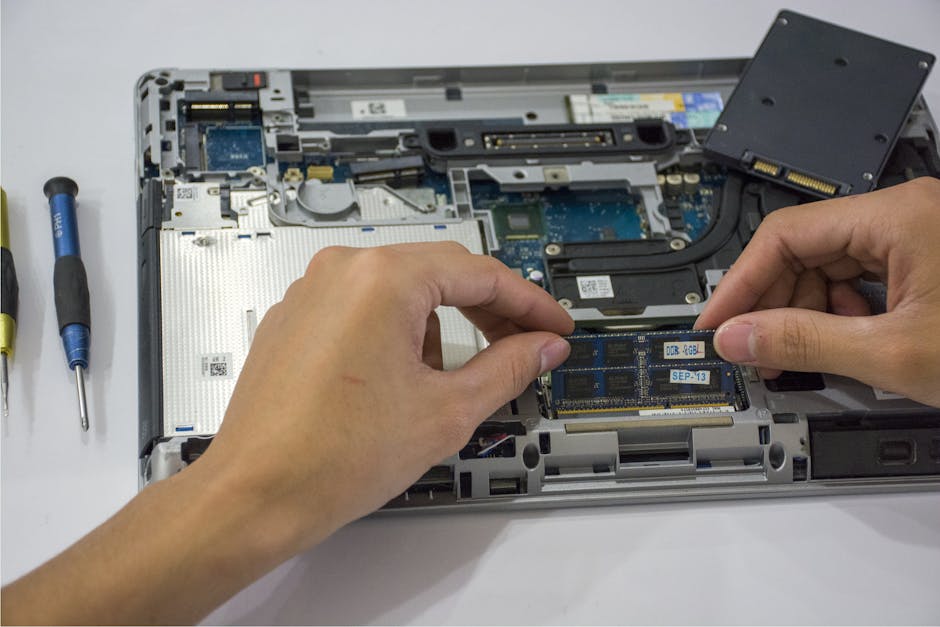
The physical installation process, while straightforward for many, requires a degree of care and attention to detail. Begin by powering down your laptop completely, unplugging the AC adapter, and removing the battery if it is user-removable. Static electricity is a primary concern, so ground yourself by touching a metal object connected to the ground before handling any internal components. Locate the RAM access panel on the underside of your laptop. This is usually a small, rectangular panel secured by one or two screws. Some laptops require removing the entire bottom cover. Consult your laptop’s manual or online tutorials for your specific model to ensure you are accessing the correct area. Once the panel is removed, you will see the RAM modules. They are typically held in place by small metal clips on either side. Gently push these clips outwards to release the module. The RAM module will then spring up at an angle. Carefully pull the module out of its slot.
To install the new RAM, align the notch on the bottom edge of the SODIMM module with the corresponding key in the RAM slot. This ensures correct orientation and prevents incorrect insertion. Insert the module into the slot at approximately a 30-45 degree angle. Once the module is seated firmly in the slot, gently push it down until the side clips snap into place, securing the module. If you are replacing RAM, repeat the removal process for the old module and then install the new one. If you are filling an empty slot, simply install the new module as described. After installing the RAM, carefully reattach the access panel or the bottom cover, reinsert the battery (if removed), and power on your laptop.
Upon booting, your system should recognize the new RAM capacity. You can verify this by checking your system information utilities (as mentioned earlier). If the system fails to boot or the new RAM is not recognized, power down the laptop, disconnect the power and battery, and re-seat the RAM module(s), ensuring they are properly aligned and secured. If the problem persists, it could indicate an incompatible RAM module, a faulty module, or a limitation with the laptop’s motherboard. Revert to the original RAM configuration to troubleshoot. For most users, a successful RAM upgrade results in a noticeably faster and more responsive system. The benefits are particularly pronounced when running memory-intensive applications like video editing software, virtual machines, CAD programs, or when engaging in extensive multitasking with numerous browser tabs and applications open simultaneously.
Beyond simply increasing capacity, considering RAM speed and timings is crucial for optimizing performance, especially in certain scenarios. For gaming, faster RAM can contribute to higher frame rates and smoother gameplay, particularly in titles that are sensitive to memory bandwidth. For productivity tasks, especially those involving large datasets or complex calculations, faster RAM can expedite processing times. However, it’s a nuanced aspect. The performance gains from faster RAM are often less dramatic than those from increasing the total capacity, and the motherboard’s chipset and the CPU’s integrated memory controller play a significant role in dictating the actual achievable speeds. Always prioritize compatibility with your existing components. Running RAM at its advertised speed requires support from the motherboard and CPU. Many motherboards offer XMP (Extreme Memory Profile) or DOCP (Direct Overclock Profile) settings in their BIOS/UEFI that allow users to enable pre-defined overclocking profiles for their RAM, enabling them to run at higher speeds and with tighter timings if the RAM modules support it. Accessing the BIOS/UEFI typically involves pressing a specific key (e.g., Del, F2, F10) during the initial boot-up sequence. Within the BIOS/UEFI, navigate to memory settings and enable the appropriate profile.
When selecting RAM, purchasing a matched kit is often advisable, especially if you are replacing all existing modules or if your laptop has dual memory channels. A matched kit consists of modules that have been tested and verified to work together seamlessly, ensuring optimal performance and stability. Dual-channel memory configurations allow the CPU to access two RAM modules simultaneously, effectively doubling the memory bandwidth. To benefit from dual-channel operation, you generally need two identical RAM modules installed in the correct slots on the motherboard. Consult your laptop’s manual to identify the appropriate slots for dual-channel configuration. Mixing modules of different capacities or speeds in a dual-channel setup can lead to the system defaulting to single-channel mode or operating at the speed of the slowest module, thereby negating the intended performance advantage.
The cost of RAM has significantly decreased over the years, making it one of the most cost-effective hardware upgrades for improving laptop performance. The price varies based on capacity, speed, and brand. For a standard DDR4 SODIMM module, 8GB capacities can range from $20 to $50, while 16GB modules typically fall between $40 and $100. DDR5 RAM, being newer, is generally more expensive. Considering the tangible performance benefits, investing in RAM is often a prudent decision compared to purchasing a new laptop, especially if the rest of the hardware is still adequate for your needs. Thorough research into compatible RAM options and careful attention to detail during installation are key to a successful and impactful upgrade, breathing new life into your aging laptop and ensuring it can keep pace with your evolving computing demands.