

Droid X Screen Problems: Proactive Solutions and Troubleshooting for a Seamless Display Experience
The Motorola Droid X, a once-ubiquitous Android smartphone, may be a relic for some, but for many, it continues to serve as a reliable device. However, like any electronic gadget, the Droid X is not immune to experiencing screen-related issues. These problems, ranging from minor glitches to more significant malfunctions, can significantly detract from the user experience. Fortunately, many Droid X screen problems can be effectively addressed through proactive measures and systematic troubleshooting. This article aims to provide a comprehensive guide to understanding, preventing, and resolving common Droid X screen issues, ensuring users can enjoy a seamless and responsive display. We will delve into the underlying causes of these problems, offer practical advice for prevention, and present detailed troubleshooting steps to revive a struggling Droid X screen.
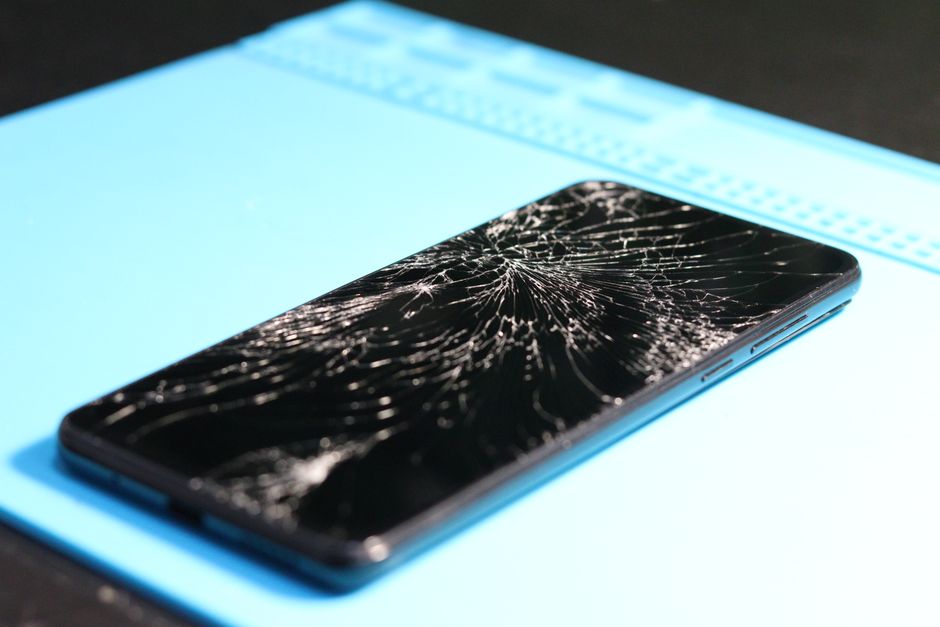
One of the most frequently encountered Droid X screen problems revolves around touch responsiveness. Users might experience a "ghost touch" phenomenon, where the screen registers touches that weren’t initiated by the user, or conversely, a lack of response to actual finger input. This can manifest as apps opening spontaneously, menus scrolling erratically, or the device failing to register taps and swipes altogether. The root cause of these touch issues can be multifaceted. Physical damage to the digitizer, the layer responsible for detecting touch, is a primary culprit. Even microscopic cracks or pressure points can disrupt its functionality. Environmental factors, such as extreme temperatures or humidity, can also impact the digitizer’s performance, leading to intermittent or complete failure. Software glitches, particularly after an operating system update or the installation of a problematic app, can also interfere with touch input recognition. Malware can further exacerbate these issues by hijacking touch commands. Finally, screen protectors, especially those that are poorly applied or of inferior quality, can sometimes create an air gap or interfere with the digitizer’s sensitivity, leading to a less accurate and responsive touch experience.
To proactively mitigate touch responsiveness problems, several preventative measures can be implemented. The most crucial step is to invest in a high-quality protective case and a tempered glass screen protector. While the Droid X already boasted a somewhat durable screen, the added layer of defense significantly reduces the risk of impact damage from accidental drops or bumps. When applying a screen protector, ensure a clean environment and meticulous application to avoid air bubbles that can impede touch sensitivity. Regular cleaning of the screen with a soft, lint-free cloth, ideally microfiber, is also essential. Fingerprints, smudges, and accumulated oils can create a barrier that slightly reduces touch accuracy. Avoid using abrasive cleaning agents or excessive moisture, as these can damage the screen’s oleophobic coating and potentially seep into the device. Furthermore, be mindful of the environment in which the Droid X is used. Extreme heat can cause the display to malfunction, and prolonged exposure to direct sunlight should be avoided. Similarly, excessive moisture or humidity can lead to internal damage. Finally, keeping the Droid X’s software updated is paramount. Manufacturers often release patches and updates to address known bugs and improve performance, including touch-related functionalities.
When touch responsiveness issues do arise, a systematic troubleshooting approach is necessary. Begin with the simplest solutions. A soft reset, achieved by holding down the power button and selecting "Restart," can often resolve temporary software glitches that are affecting touch input. If the problem persists, a hard reset, also known as a factory data reset, might be required. Crucially, before performing a factory reset, back up all important data, including contacts, photos, and app data, as this process will erase everything on the device. This can be done through Motorola’s backup tools or third-party cloud services. If the issue is suspected to be app-related, try booting the Droid X into Safe Mode. To enter Safe Mode, power off the device, then power it back on while holding down the Volume Down button. This will boot the phone with only essential system applications, disabling any third-party apps. If touch responsiveness improves in Safe Mode, it strongly indicates that a recently installed or updated app is the culprit. You can then uninstall suspect apps one by one, restarting the phone after each uninstallation, to identify the problematic application. If even Safe Mode doesn’t resolve the issue, it points towards a hardware problem.
Another common Droid X screen problem involves display anomalies such as dead pixels, stuck pixels, or an uneven backlight. Dead pixels are permanently unlit pixels that appear as small black dots on the screen. Stuck pixels, on the other hand, are illuminated with a single color (red, green, or blue) and remain that way. Uneven backlighting can result in patches of the screen appearing brighter or dimmer than others, affecting overall image uniformity. These issues are almost exclusively hardware-related and often stem from manufacturing defects or damage to the display panel itself. While minor cases of stuck pixels can sometimes be resolved through software-based pixel-fixing tools or gentle pressure, dead pixels are generally irreversible without a screen replacement. Persistent and noticeable uneven backlighting can also indicate a problem with the display’s internal components.
Preventing these display anomalies primarily revolves around handling the Droid X with care. Avoid applying excessive pressure to the screen, especially when it’s in a pocket or bag where it might be squeezed. While the Droid X’s display is designed to withstand normal use, sharp objects or significant pressure can lead to pixel damage. As mentioned earlier, a good protective case and screen protector offer a crucial buffer against physical impact, which is a leading cause of display issues. It’s also important to avoid exposing the screen to extreme temperature fluctuations, as these can stress the delicate pixel structures. If you notice a single stuck pixel, some users have reported success with pixel-fixing software or by gently tapping the affected area with a stylus or a soft, damp cloth. However, this should be done with extreme caution, as excessive force can worsen the problem.
Troubleshooting display anomalies often involves identifying the nature of the problem. If you suspect dead or stuck pixels, there are online tools and downloadable applications that can cycle through various colors on your screen, making it easier to spot these imperfections. For uneven backlighting, try viewing a solid white or black image on the screen in a dark room. This will highlight any inconsistencies in brightness. If the problem is a stuck pixel and the gentle tapping or software methods haven’t worked, and the imperfection is not overly distracting, some users choose to live with it. However, if the display anomalies are severe, significantly impact usability, or are indicative of a larger backlight issue, a professional repair or screen replacement is usually the only viable solution. It’s worth noting that some Droid X models might have had manufacturing batches with a higher incidence of pixel defects, so it’s not always a reflection of user mishandling.
Screen flickering or intermittent blackouts are another frustrating Droid X screen problem. This can manifest as the entire screen briefly turning black, flickering rapidly, or the display cutting out and then returning. The causes can range from loose internal connections to software conflicts or even a failing battery. Loose ribbon cables connecting the display to the motherboard are a common hardware culprit. Over time, vibrations or minor impacts can cause these connections to loosen, leading to intermittent signal loss. Software issues, particularly driver problems or conflicts within the operating system, can also trigger flickering. A failing battery, while not directly a screen issue, can sometimes lead to erratic power delivery to the display components, causing them to malfunction. In some cases, overheating can also contribute to screen flickering as the device attempts to protect itself from damage.
To prevent screen flickering, ensure the Droid X is handled gently and avoid subjecting it to excessive vibrations or impacts. Using a protective case can absorb some of the shock from accidental drops. Keeping the device’s software updated is crucial, as firmware updates often address power management and display driver issues that could contribute to flickering. If you frequently use power-intensive applications, consider monitoring the device’s temperature, as overheating can be a precursor to flickering issues. Avoid using the Droid X while it’s charging if you notice the screen behaving erratically during charging, as this could indicate a battery or charging port issue.
Troubleshooting screen flickering requires a methodical approach. First, try a soft reset. If the flickering is temporary and linked to a specific app or function, restarting the device can often resolve it. If the problem persists, try connecting the Droid X to its charger and observe if the flickering occurs only when unplugged or when plugged in. If it happens only when unplugged, it might point to a battery issue. If it happens while plugged in, it could be a charging port or adapter problem. Consider using a different charger and cable to rule out external factors. Next, boot the Droid X into Safe Mode to determine if a third-party app is causing the conflict. If the flickering stops in Safe Mode, you’ll need to identify and uninstall the problematic app. If the issue persists even in Safe Mode, it’s more likely a hardware problem. This could involve a loose internal connection or a failing component. In such cases, professional repair is usually necessary. Some advanced users might attempt to reseat internal cable connections, but this is a delicate procedure and should only be undertaken by those with prior experience and the appropriate tools, as incorrect handling can cause further damage.
Finally, screen burn-in, while less common on modern LCD displays like those in the Droid X compared to older OLED technology, can still occur with prolonged display of static images. This manifests as a faint, ghosted image that remains visible even when the content on the screen has changed. This is essentially a permanent discoloration of pixels that have been consistently illuminated for extended periods. The primary cause is the degradation of phosphors in the LCD pixels.
Preventing screen burn-in on the Droid X involves minimizing the amount of time static images are displayed on the screen at maximum brightness. This includes avoiding leaving the device on with the same app open for hours, or leaving a static image like a wallpaper or a game menu displayed for prolonged durations. Adjusting screen timeout settings so that the display automatically turns off after a short period of inactivity is a highly effective preventative measure. Utilizing dynamic wallpapers or screensavers can also help to keep pixels in motion. Reducing screen brightness when possible also lessens the strain on the pixels.
Troubleshooting screen burn-in is unfortunately more about mitigation and acceptance rather than a definitive fix for an LCD display. If you notice faint burn-in, try displaying a rapidly changing colorful image or a dedicated "burn-in fix" video on the screen for several hours. These videos often cycle through various colors and patterns, which can sometimes help to "exercise" the pixels and slightly reduce the appearance of burn-in. However, it’s important to manage expectations; significant burn-in is often permanent. If the burn-in is severe and disruptive to the user experience, the only true solution is a screen replacement.
In conclusion, while the Droid X may be an older device, its screen problems are not insurmountable. By understanding the potential causes, implementing proactive preventative measures such as using protective accessories and maintaining software updates, and employing systematic troubleshooting techniques, users can significantly extend the life and usability of their Droid X. From touch responsiveness issues to display anomalies and flickering, many common screen problems can be nipped in the bud with a combination of careful handling and informed problem-solving. For persistent or severe hardware-related issues, seeking professional repair remains the most reliable path to restoring the Droid X’s display to its optimal functionality.












No comments yet. Be the first to join the conversation!