Ok Ill Draw You A Map On Google
Okay, I’ll Draw You a Map on Google: A Comprehensive Guide to Google Maps Creation and Sharing
Creating a custom Google Map is an invaluable skill for anyone needing to visualize locations, plan journeys, or share specific geographic information. Whether you’re a traveler organizing an itinerary, a business owner highlighting service areas, an educator illustrating a historical route, or simply someone wanting to share a collection of favorite spots, Google Maps offers a powerful, intuitive platform. This guide will walk you through the entire process, from the initial setup to advanced customization and effective sharing, ensuring your custom map is both functional and easily discoverable. We’ll delve into the nuances of the Google My Maps interface, explore various marker types, layer management, adding rich media, and optimizing your map for search engines.
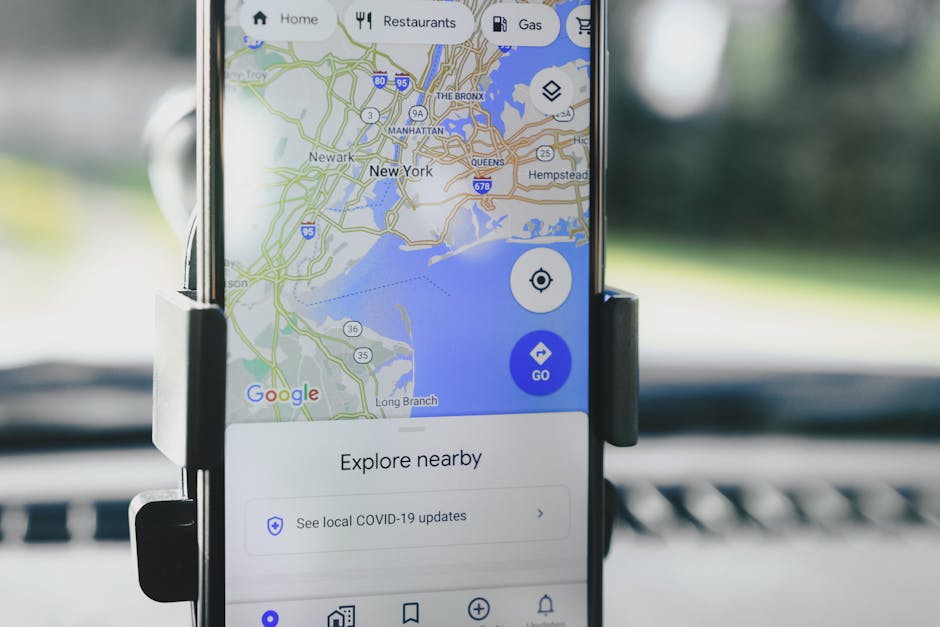
The first step in drawing your map on Google is accessing the Google My Maps platform. Navigate to https://mymaps.google.com/. You will need to be logged into your Google account. Upon landing on the page, you’ll see a button prompting you to "Create a new map." Clicking this will open a blank canvas, ready for your personalization. The interface is divided into several key areas: a map display that takes up the majority of the screen, a left-hand sidebar for managing layers and adding features, and a search bar at the top for finding locations. Familiarizing yourself with this layout is crucial for efficient map creation. The left sidebar is where all the action happens. You’ll see your untitled map at the top, followed by an "Untitled layer." Layers are the building blocks of your custom map, allowing you to organize different types of information. You can think of them as transparent sheets that you can place on top of each other, each containing specific points, lines, or shapes.
Adding your first location is as simple as using the search bar. Type in an address, a business name, a landmark, or even a general area. For example, if you’re planning a trip to Paris, you might search for "Eiffel Tower." Google Maps will identify the location and present it in the search results. At the bottom of the search result pane, you’ll find an option to "Add to map." Clicking this will automatically create a new marker on your map and add an entry for it in your current layer. This is the most straightforward method for populating your map with points of interest. Once a marker is added, it will appear in your layer list. Clicking on the marker on the map or the corresponding entry in the layer list will open an information panel. This panel allows you to rename the marker (e.g., "Our Parisian Adventure Start"), add a description, and customize its appearance.
The customization options for individual markers are extensive. Clicking the paint bucket icon next to the marker’s title in the information panel opens the styling menu. Here, you can change the marker’s color from a pre-set palette or select a custom color. You can also choose from a wide array of icons. These icons range from standard placemarks to directional arrows, transportation symbols, and even lifestyle-related icons like coffee cups or cameras. Selecting appropriate icons makes your map more visually intuitive. For instance, using a camera icon for photo opportunities or a fork and knife icon for restaurants enhances the immediate understanding of each point. You can also change the icon style to be a numbered marker, which is particularly useful for sequential locations in a tour or itinerary.
Beyond individual markers, Google My Maps allows you to draw lines and shapes, adding another layer of geographic information. To draw a line, click the "Draw a line" icon (it often looks like a dashed line) below the search bar. You can then select "Add line or shape." Clicking points on the map will create a series of connected line segments. This is ideal for outlining delivery routes, walking paths, hiking trails, or flight paths. Double-clicking will finalize the line. Similar to markers, lines can be styled with different colors, line thicknesses, and opacities. You can also add text labels to your lines to identify them, such as "Route 1: City Tour."
Drawing shapes is equally useful. Select "Add line or shape" again and then choose the shape drawing tool (often depicted as a polygon icon). Clicking points on the map will create vertices for your shape. This is perfect for demarcating service areas, property boundaries, or zones of interest. You can fill these shapes with colors and adjust their transparency, allowing the underlying map to still be visible. For instance, a business might use a shaded shape to illustrate its primary service radius, making it easy for customers to see if they fall within the designated area.
Managing layers is fundamental to organizing complex maps. As you add more locations, lines, and shapes, your left sidebar can become crowded. Creating multiple layers allows you to group related items. For example, on a travel map, you might have a "Must-See Attractions" layer, a "Restaurants" layer, and a "Transportation Hubs" layer. To create a new layer, click the "+ Add layer" button at the bottom of the sidebar. You can then rename each layer (e.g., "Day 1 Itinerary," "Accommodation," "Historical Sites") and assign it a unique color. When you add a new item, it will be placed in the currently selected layer. You can also move existing items between layers by clicking and dragging them in the sidebar. This organization is not only for your own clarity but also for the user viewing your map, as they can often toggle layers on and off.
Adding rich media to your map makes it more engaging and informative. When you edit a marker, description box allows for more than just text. You can add images and videos directly to your markers. Click the camera icon within the marker’s information panel. This will allow you to upload an image from your computer or search for one on Google Images. You can also embed YouTube videos by pasting the video URL. This is incredibly powerful for travel blogs, real estate listings, or educational projects. Imagine a historical tour map where each marker includes a photo of the site and a short video explaining its significance. This transforms a static map into an interactive narrative.
For SEO (Search Engine Optimization) purposes, consider how people will find your map. While Google My Maps itself isn’t indexed by Google Search in the same way as web pages, the maps you share can be embedded on websites, which are indexed. Therefore, optimizing the content within your map and the way you describe it on a webpage is crucial.
Here’s how to optimize your Google Map for discoverability and engagement:
-
Descriptive Map Title: When you create a new map, give it a clear, descriptive title. Instead of "My Trip," use "Best Restaurants in Rome: A Foodie’s Guide" or "Historic Walking Tour of Boston." This title will appear when your map is shared or embedded.
-
Detailed Map Description: Below the title in the map settings (click the three dots next to the map title in the sidebar), there’s a "Map description" field. Fill this out thoroughly. Use keywords that potential viewers might search for. For example, if you’ve created a map of local parks, mention terms like "parks," "green spaces," "playgrounds," "walking trails," "picnic areas," and the specific city or region.
-
Keyword-Rich Marker Titles and Descriptions: As mentioned earlier, make your marker titles specific and informative. Instead of "Shop," use "Acme Bookstore – Rare Finds." In the marker description, go into detail. Include opening hours, contact information, a brief history, or highlights of what makes that location special. Use relevant keywords naturally within these descriptions.
-
Strategic Use of Layers: While not directly an SEO factor for the map itself, well-organized layers make your map easier to navigate, leading to a better user experience. A better user experience can indirectly influence engagement metrics if your map is embedded on a website, potentially signaling to search engines that the content is valuable.
-
Public Sharing and Embedding: For your map to be found, it needs to be accessible. Click the "Share" button. Ensure your map is set to "Public on the web." This makes it discoverable via a direct link and allows it to be embedded on websites. When embedding on your own website, use descriptive anchor text for the link to your map and include surrounding text that also utilizes relevant keywords.
-
Image and Video Optimization (within the map): While you can’t directly optimize image file names or alt text within Google My Maps, ensure the images and videos you upload are relevant and high-quality. If you’re embedding a YouTube video, ensure its title and description on YouTube are also optimized.
-
Geotagged Content on Embedded Pages: If you embed your Google Map on a webpage, ensure that webpage itself is optimized for local SEO. This includes having your business name, address, and phone number (NAP) clearly displayed, and the surrounding text should accurately describe the map’s content and include relevant keywords.
Sharing your custom map is the final, crucial step. Click the "Share" button. You have several options. You can invite specific people via their email addresses. You can also get a shareable link. It’s vital to adjust the privacy settings. "Private" means only you can see it. "Anyone with the link can view" is suitable for sharing with a select group without making it publicly searchable. "Public on the web" makes your map discoverable through search engines (indirectly, via embedded content) and allows anyone to find it if they have the direct link.
The "Embed on my site" option provides an HTML iframe code that you can copy and paste into the backend of your website or blog. This seamlessly integrates your custom map into your web presence, allowing your visitors to interact with it directly. When embedding, consider the context. A real estate agent might embed a map of available properties on their listings page. A tour operator might embed a map of their tour routes on their booking page.
Collaboration is another powerful feature. You can grant "Can edit" access to other Google users. This is invaluable for group projects, team planning, or when multiple people are contributing to a shared map. For instance, a group of friends planning a road trip can collaboratively build and refine their itinerary.
Google My Maps also offers different view modes for your map. When viewing your own map, you can toggle between the standard map view, satellite imagery, and terrain views. This helps in visualizing the geographical context of your points and routes. When someone else views your shared map, they will typically see the standard map view, but they can usually access different base map options depending on how you’ve configured it or the platform they’re using to view it.
Data import and export are advanced features that can significantly streamline map creation. You can import data from a spreadsheet (like a CSV file) that contains location information (addresses, coordinates) and associated attributes. Google My Maps can then automatically plot these points. This is a massive time-saver for large datasets. Conversely, you can export your map data in KML (Keyhole Markup Language) format, which is compatible with other GIS (Geographic Information System) software and applications, allowing for further analysis or use in different platforms.
The collaborative and organizational capabilities of Google My Maps are often underestimated. For businesses, it’s a fantastic tool for internal use as well. Sales teams can map out client territories. Logistics departments can plan delivery routes. Marketing teams can visualize campaign reach. The ability to layer and color-code different types of data allows for complex spatial analysis and clear communication of geographic information.
In conclusion, "Okay, I’ll draw you a map on Google" is more than just a simple request; it’s an entry point into a robust suite of tools for geographic visualization and communication. By mastering the creation, customization, organization, and sharing of Google Maps, you can effectively communicate spatial information, plan intricate journeys, and enhance the discoverability of your geographic data. The platform’s user-friendly interface, combined with its powerful features for adding rich media and managing layers, makes it an indispensable asset for a wide range of personal and professional applications. Remember to focus on descriptive titles, detailed descriptions, and strategic keyword usage to maximize the reach and utility of your custom-created maps.